







































Upgrading Your KubeDB Platform: Management, Imported, and Spoke Clusters
Overview
Upgrade a KubeDB Platform deployment across all cluster tiers: the base management cluster, the KubeDB Platform cluster, general imported clusters, and spoke clusters. The example below upgrades from release 2025.5.16 to 2025.6.x.
Architecture
                    ┌─────────────────────────────────┐
                    │       Management Cluster         │
                    │  (KubeDB Platform control plane) │
                    └────────────────┬────────────────┘
                                     │
                  ┌──────────────────┼──────────────────┐
                  │                  │                  │
   ┌──────────────▼──────┐  ┌────────▼────────┐   ┌─────▼──────────┐
   │ KubeDB Platform     │  │ Imported Cluster │  │ Spoke Cluster  │
   │ Cluster (management)│  │ (generic import) │  │ (generic import│
   └─────────────────────┘  └─────────────────┘   └────────────────┘
Each tier is upgraded separately; the order matters.
Pre-checks
Before starting, verify your current installer version and target release.
- Log in to appscode.com and switch to your organization.
- Navigate to your installer and click View Details.
- Note the current version (e.g.,
2025.5.16) and confirm the target version (e.g.,2025.6.x).
# Confirm current Helm release versions on the management cluster
helm list -A | grep opscenter-features

# Watch releases during upgrade
kubectl get helmreleases -A -w
Upgrade Flow
Step 1 — Download the new installer archive
- On the installer page, click Upgrade to <x.y.z>.
- Click Download to get the updated
.values(val) file. - The downloaded archive lands in your local archive folder (e.g.,
archive2/).
# Optional: inspect the downloaded values file before applying
cat ~/Downloads/<release>.values.yaml
Step 2 — Apply the upgrade via Platform UI
- Switch from the Console UI to the Platform UI.
- Go to User Settings → Upgrade.
- Select the val file downloaded in Step 1.
- Click Update Version.
The platform creates a background job that updates Helm releases one by one.
# Monitor the upgrade job on the management cluster
kubectl get jobs -n ace -w

# Watch Helm releases roll forward
kubectl get helmreleases -A -w
Expected state:
current version: 5.16 → update in progress: 6.16
Once the job completes, verify the op-center feature set reflects the new version.
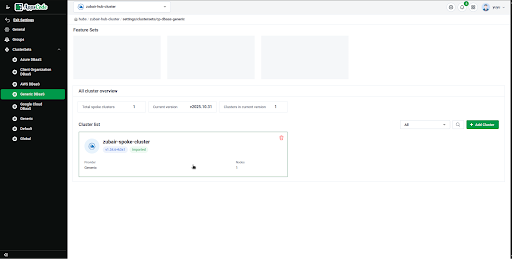
Step 3 — Upgrade spoke clusters
Spoke clusters are imported as generic DBaaS generally. Update them individually before updating the cluster set.
- In the Console, go to Your Organization → Hub Cluster → KubeDB Platform.
- Select the correct Cluster set (how you imported). For example, Generic DBaaS.
- Select your spoke cluster.
- Click Update KubeDB Platform Resources → Update Version → Yes.
# After triggering, watch the QB operator start the upgrade on the spoke
kubectl get helmreleases -A -w --context <spoke-cluster-context>

# Wait for all pods to return to Running
kubectl get pods -A --context <spoke-cluster-context>
The cluster set manifest (which holds metadata about all spoke clusters) updates almost instantly. The underlying Helm releases take longer — wait for them to reconcile before moving on.
Step 4 — Upgrade general imported clusters
- In the Console, select the General Imported Cluster.
- Open its Settings page and click Update Version.
# Verify on the imported cluster
kubectl get helmreleases -A --context <imported-cluster-context>
This path updates Helm releases directly (not via a cluster set), so progress is visible immediately.
Step 5 — Update the cluster set
After all individual clusters are on the new version:
- In the Console, go to Your Organization → Hub Cluster → KubeDB Platform.
- Select the correct Cluster set (how you imported). For example, Generic DBaaS.
- Click Update Cluster Set.
# Confirm cluster set version
kubectl get clusterset -A
Before clicking Update Cluster Set, you will see the cluster set still shows the old version (e.g.,
5.6). After the update it will be marked as unaligned briefly, then reconcile.
Step 6 — Verify
# Check every Helm release is at the new version across all clusters
for ctx in management spoke imported; do
  echo "=== $ctx ==="
  helm list -A --kube-context $ctx | grep -v DEPLOYED
done

# Spot-check the search manager (may self-update from the cluster side)
kubectl get deployment search-manager -n ace -o jsonpath='{.spec.template.spec.containers[0].image}'
All clusters should report version 6.6.16 (or your target release).
Lessons Learned
| Observation | Takeaway |
|---|---|
| One Helm release failed to update via the job | It had already reconciled from the cluster side — not always an error |
| Cluster set update is near-instant | It only patches a manifest, not the releases themselves — releases follow async |
| Search manager self-updated | Some components pull their version from the cluster operator, not the installer job |
| Upgrade order matters | Always update individual clusters before the cluster set |
| Ports need time after upgrade | Wait for all pods to reach Running before declaring success |
Quick Reference
appscode.com → Download val file
       ↓
Platform UI → Update Version (Management / Platform cluster)
       ↓
Console → Generic DBaaS → Update KubeDB Platform Resources (each spoke)
       ↓
Console → Generic DBaaS → Update Cluster Set
       ↓
Console → Imported Cluster → Settings → Update Version
       ↓
Verify: helm list -A across all contexts
No downtime during upgrade procedure — the platform performs rolling Helm release updates and most workloads stay running throughout.
Here is a sample video on how you can setup the full platform: